Your team
As a manager you see your team in several places: the Approvals queue, the Team schedule on the Calendar page, the dashboard's Who's on leave widget, the Directory, and the Employees list under People. Your team is defined by the reporting manager field on each employee's profile, which HR maintains.
Who can do this: the Manager role carries `employees.view.own_company`, `leave_requests.view.direct_reports`, `calendar.view.direct_reports`, `expenses.view.direct_reports` and `directory.view`. HR Managers and Admins see every employee through `employees.view.any` or `employees.view.assigned_companies`.
Where to find it
People → Employees. URL: `/employees`. Also Directory (`/directory`), Leave → Holiday Calendar (`/holiday-calendar`) and the dashboard.
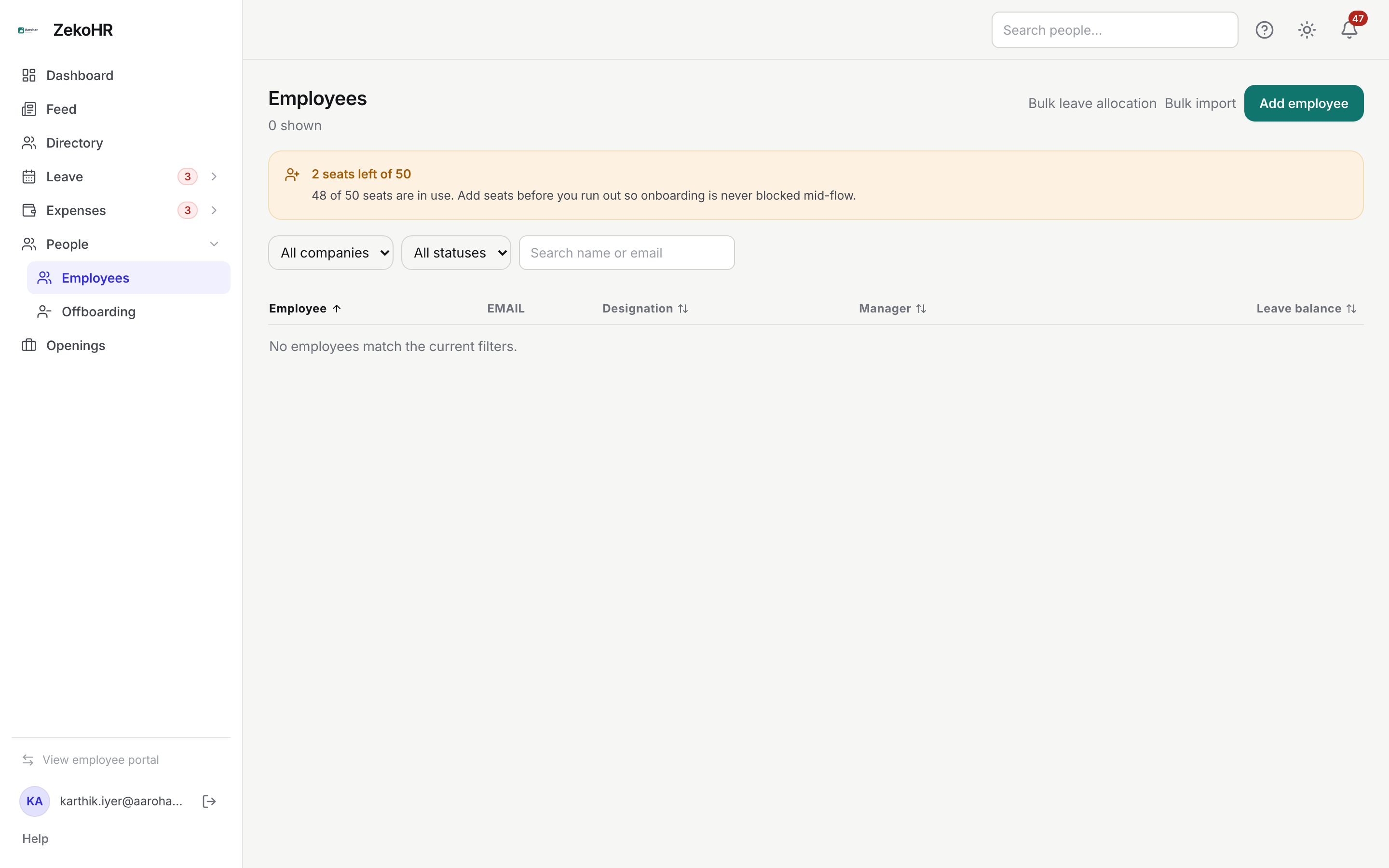
The Employees list
The page offers All companies, All statuses (Active, On leave, Inactive, Offboarded) and Search name or email filters, with columns for Employee (photo and name), EMAIL with leave tags, Designation, Manager and Leave balance (the sum of the person's current-year balances in days). Leave tags read On leave until {date} or On leave {from} – {to} for current or upcoming approved leave, and Applied for leave on: {date} when a request is pending.
Those rows fill only for HR Managers and Admins whose HR scope covers the company. As a Manager with `employees.view.own_company` you can open the page, but it shows No employees match the current filters. however you set the filters. The links Bulk leave allocation, Bulk import and Add employee are HR actions that only work with the corresponding HR permission. Use the places below for day-to-day team visibility.
Where managers see their reports
| Need | Go to | What you get |
|---|---|---|
| Pending leave to decide | Leave → Approvals | Cards for every request assigned to you, with reason and day count. |
| Who is out and when | Leave → Holiday Calendar → Team schedule | Your direct reports' pending and approved leave over a 30-day window, with leave type. |
| Today's absences | Dashboard WHO'S ON LEAVE | Reports and visible colleagues on leave today or later this week, with half-day chips. |
| Contact details and role | Directory | Name, designation, department, email and phone for everyone. |
| Expense claims to decide | Expenses → Expense Approvals | Submitted claims at your step. |
| A report's claim details | Expenses → Expense Approvals | Click a claim title to open its line items, receipts and approval chain. |
What a manager cannot do
- Change a report's profile, salary, documents or role; those are HR and Admin screens. Employees edit their own details through change requests which HR reviews.
- Allocate or adjust leave balances. Ask HR, or have the employee send a Request Leave Allocation.
- Cancel a report's leave or override a decision; HR does that from Leave Records.
- See a report's leave type on the dashboard widget for people outside your team; colleagues see only "On leave".
What happens next
- Approving leave from your queue updates the team schedule and Who's on leave immediately.
- Reporting-line changes made by HR move the person between managers at once, but requests already submitted keep their original approver.
Rules and limits
- Reporting managers always see their direct reports' leave regardless of the report's visibility setting.
- A manager who is themselves a report sees their own manager's team only if that teammate's visibility is Everyone or Reporting manager & team.
- The Employees list shows active people by default; offboarded people appear only with the Offboarded status filter.
- This module must be enabled on your plan; Admins can check Settings → Billing.
Troubleshooting
Employees shows 0 shown. Expected for the Manager role; use Approvals, the calendar and the directory, or ask an Admin to grant HR scope if you need the list.
A new team member's requests are not reaching me. Their profile does not name you as reporting manager. Ask HR to update it.
I can see a report in the calendar but not open their record. Employee records are HR screens. Ask HR for the detail you need.
Leave balance column shows a dash. The person has no allocations in the current leave year.