Employee onboarding checklists
HR tracks each person's onboarding from their employee record. The Onboarding tab shows every checklist assigned to them with step-by-step progress, the evidence they uploaded, their notes, and a Verify button on items that need HR sign-off. When no checklist exists you assign a template from the same tab.
Who can do this: HR Managers and Admins with `onboarding.view.any`; Managers with `onboarding.view.own_company` can view people in their company. Assigning needs `onboarding.assign`; verifying needs `onboarding.verify` (HR Manager and Admin by default).
Where to find it
People → Employees, open the record, Onboarding tab. URL path: `/employees/{id}?tab=onboarding`. A full-page version with the same controls is at `/employees/{id}/onboarding`.
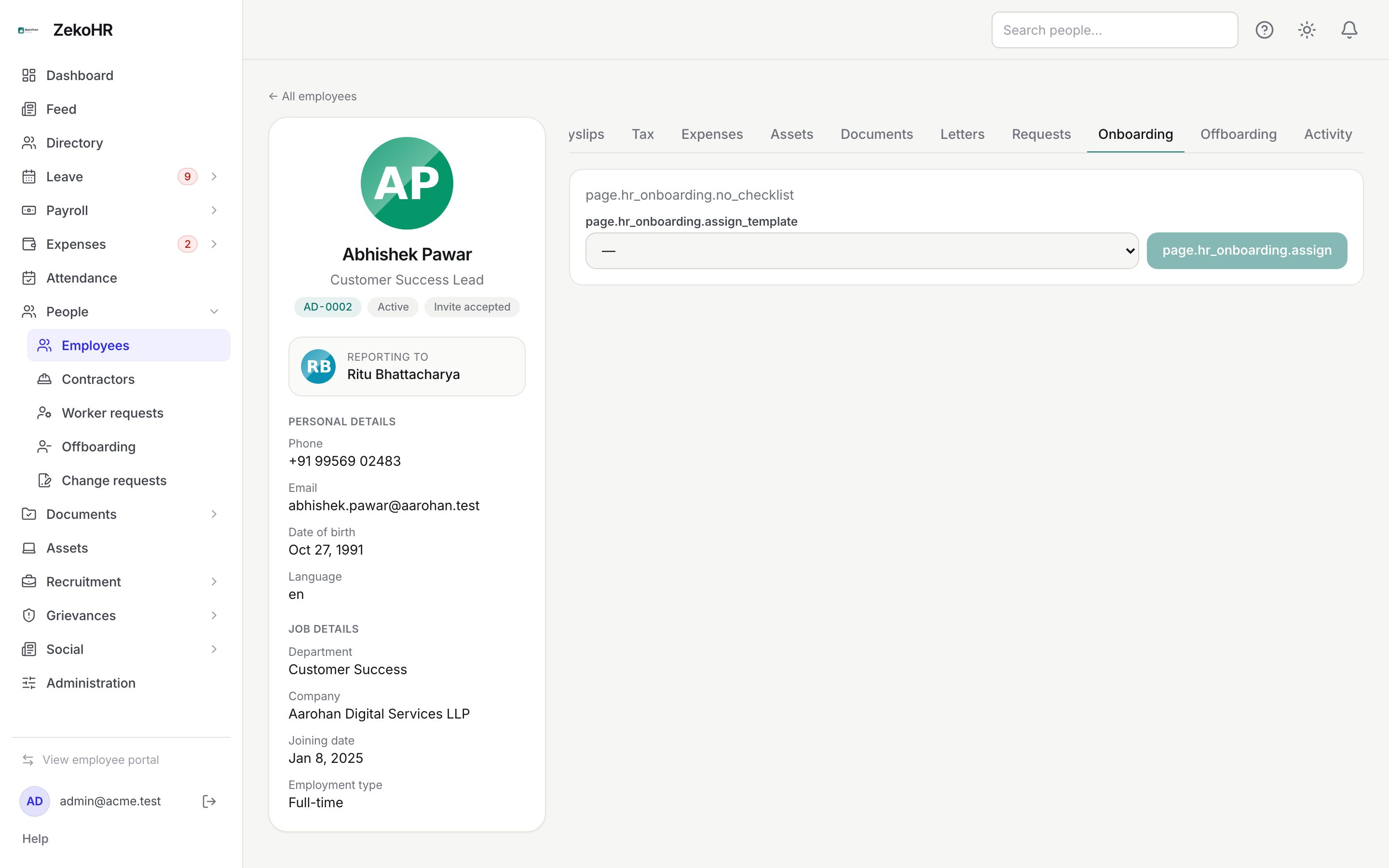
Assigning a checklist
- When the tab says no checklist has been assigned, pick one under Assign template and click Assign.
- The template's items are copied onto the person, grouped by step. The person gets an in-app notification and the onboarding.assigned email with a link to My onboarding and the item count.
- The checklist appears with its progress, for example 3/12 (25%), and on the full page 1 of 3 steps complete · now on Document Upload.
Normally this is automatic: Add employee and recruitment joins pick a template by company and employment type, falling back to the default. Bulk import does not assign one. Assigning the same template twice is harmless; the existing checklist is returned.
Verifying items
- Items with HR verification required show Verify once the employee has ticked them. Until then the item is simply pending.
- Check the evidence file name and any note shown under the item (notes are quoted).
- Click Verify. The item is stamped with your name and time and shows Verified. An onboarding.item.verified audit entry records the item, step and employee.
Verification can be undone only by unticking the item, which the employee or HR can do; unticking clears both completion and verification.
What the tab shows
| Element | Meaning |
|---|---|
| Progress | Done items over total items, and percentage |
| Step header (full page) | Step name, items done in the step, and Completed, Pending or Locked |
| Struck-through label | Item is done (and verified where required) |
| Mandatory / Optional | Whether the item gates the next step |
| Paperclip badge | Name of the uploaded evidence file |
| Verify button | Item completed and awaiting your sign-off |
| Verified | Signed off, with the verifier recorded |
| Green banner | Checklist complete |
What happens next
- When every step has all mandatory items done (verification included), the checklist is closed automatically, an "Onboarding completed" event is written to the person's timeline, and they receive an in-app completion notification.
- Checklist and verification actions appear on the record's Activity tab through the audit log.
Rules and limits
- Sequencing is enforced: the employee cannot complete an item in step 2 while step 1 has mandatory items outstanding. The tab offers Verify only; ticking items is done by the employee from My onboarding.
- An item with Evidence required cannot be completed without a file, by anyone.
- Items are copies: editing the template later does not change this checklist. To apply a changed template, assign it as a second checklist.
- HR Managers can view onboarding for any company but can only reach records inside their HR scope.
- Offboarding checklists are not shown here. The record's Offboarding tab holds the initiation form and, once an exit is scheduled, a status message; the employee works through the exit checklist on My offboarding.
- This module must be enabled on your plan; Admins can check Settings → Billing.
Troubleshooting
The Assign template dropdown is empty. No onboarding templates exist. Create one under Settings → Templates → Onboarding.
Verify is not showing on an item that needs it. The employee has not ticked the item yet. Verification only follows completion.
The checklist is at 100% but not marked complete. An optional item is counted in the percentage but a mandatory item still waits on verification. Look for a Verify button.
I assigned a template but the employee got no email. The email goes out only when a checklist is created; if it already existed nothing is sent. Check Settings → Email log.
A contractor got the employee template. Contractor records are matched to contractor templates first; if none exists for their company, the fallback order applies. Create a contractor template.