Employees list
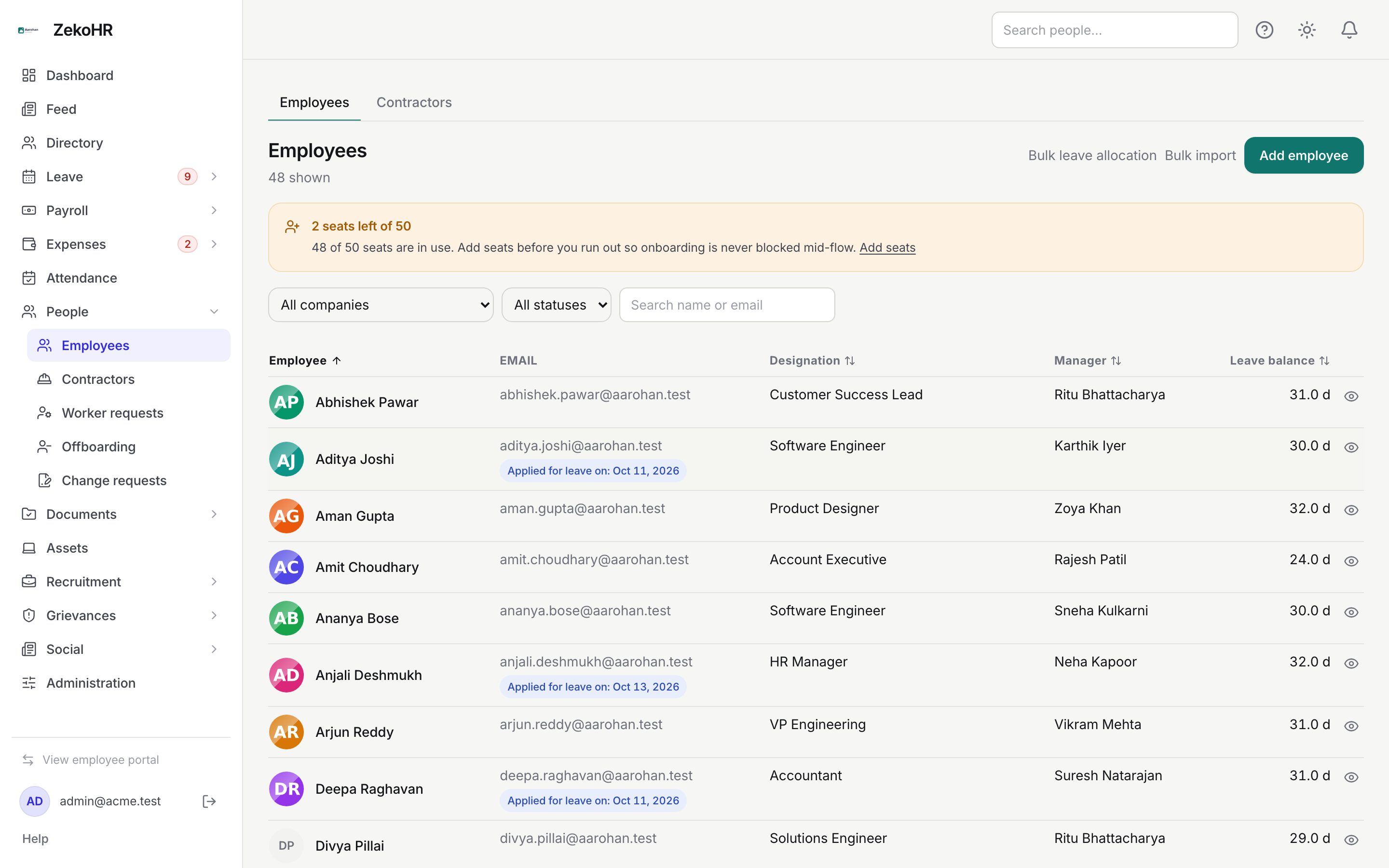
People → Employees is the HR working list of everyone in the companies you look after. Each row shows the person, their email, designation, reporting manager and current leave balance, with tags for upcoming or pending leave. From here you add employees, resend invitations, jump to bulk import and bulk leave allocation, and open the full employee record.
Who can do this: HR Managers and Admins with `employees.view.any`, `employees.view.assigned_companies` or `employees.view.own_company`. Adding needs `employees.create`; inviting needs `employees.invite.any` or `employees.invite.assigned_companies`; Log in as needs `users.impersonate`.
Where to find it
People → Employees in the admin view. URL path: `/employees`. The Employees and Contractors tabs at the top switch between the two worker categories.
Filtering and sorting
- Pick a company in All companies to show one legal entity. You only see companies inside your HR scope.
- Pick All statuses, Active, On leave, Inactive or Offboarded. With no status filter, offboarded people are hidden so the list reads as the current headcount.
- Type in Search name or email. Matching is a contains search on both fields.
- Click a column heading (Employee, Designation, Manager, Leave balance) to sort; click again to reverse. Your sort choice is remembered in this browser.
The count under the heading (48 shown) is the number of rows after filters. The list loads up to 200 people in alphabetical order.
What the columns mean
| Column | Meaning |
|---|---|
| Employee | Photo or initials and name. A Contractor badge marks contractors |
| Work email, plus leave tags: On leave until or On leave on (an approved request in the next 60 days) and Applied for leave on (the most recent pending request) | |
| Designation | Title, or a dash |
| Manager | Reporting manager, or a dash |
| Leave balance | Sum of current-year balances across all non-comp-off leave types, in days |
| Actions | Invite or Resend for people who have not accepted their invitation, Log in as for impersonation holders, and the eye icon to open the record |
On a phone the table becomes cards with the same content.
Actions from the list
- Add employee opens the create dialog. See Adding and inviting employees.
- Bulk import goes to the CSV wizard. See Bulk import.
- Bulk leave allocation initialises leave balances for many people at once. See Allocating leave.
- Invite / Resend sends or resends the invitation email immediately; there is no confirmation step. The button disappears once the person has accepted.
- Log in as starts an impersonation session as that person after a confirmation. It is recorded against your account in the audit log and is never offered on your own row.
- Click anywhere on a row, or the eye icon, to open the employee record. See Employee profile tabs.
Seat notice
A banner above the filters appears when your plan's seat limit is close or reached, for example 2 seats left of 50. Creating an employee past the limit fails with a validation error, so add seats first. Admins manage seats under Settings → Billing. See Seats and invoices.
Rules and limits
- HR Managers see only employees in companies assigned to them under Administration → Settings → HR scope. Admins see everything. A Manager sees the list for their own company but cannot edit from it.
- Offboarded employees are kept and are reachable with the Offboarded status filter.
- Contractors are listed on the Contractors tab, not here. A pre-existing employee whose employment type is "Contractor" shows a banner offering to convert them to the Contractor module.
- Sorting happens in the browser on the loaded rows; filters happen on the server.
Troubleshooting
I cannot see an employee I know exists. Their company is outside your HR scope, or they are offboarded and the status filter is empty. Try All statuses → Offboarded.
The Invite button is missing on a row. The person has already accepted their invitation (Invite accepted). To reset access, open their record and use Reset password.
Resend failed with a message that email is unavailable. The mail provider refused the send. The record is untouched; try again shortly or check Administration → Settings → Email log.
Leave balance shows a dash. The company has no leave year config yet, or the person has no allocations. See Leave year config.
I see Add employee but get a validation error when saving. The seat limit is reached. Check the banner and Settings → Billing.