Interviews and scorecards
Interviews are scheduled from a candidate's application against the job's hiring process. Each round has its own panel; every panelist fills in their own scorecard, and the application's scorecard matrix shows rounds against panelists with an overall hire signal. Candidates get an invitation with a calendar attachment; panelists get the candidate summary and a feedback link.
Who can do this: HR with `recruitment.manage.any` or `recruitment.manage.assigned_companies`, and the job's hiring manager or recruiter, schedule, reschedule, complete, mark no-show and cancel. Panelists give feedback (see Interview panelist guide). The Interviews agenda is HR only.
Where to find it
Recruitment → Interviews, at `/recruitment/interviews`, for the agenda. To schedule, open an application and its Interviews & feedback tab (`/recruitment/applications/{id}?tab=interviews`).
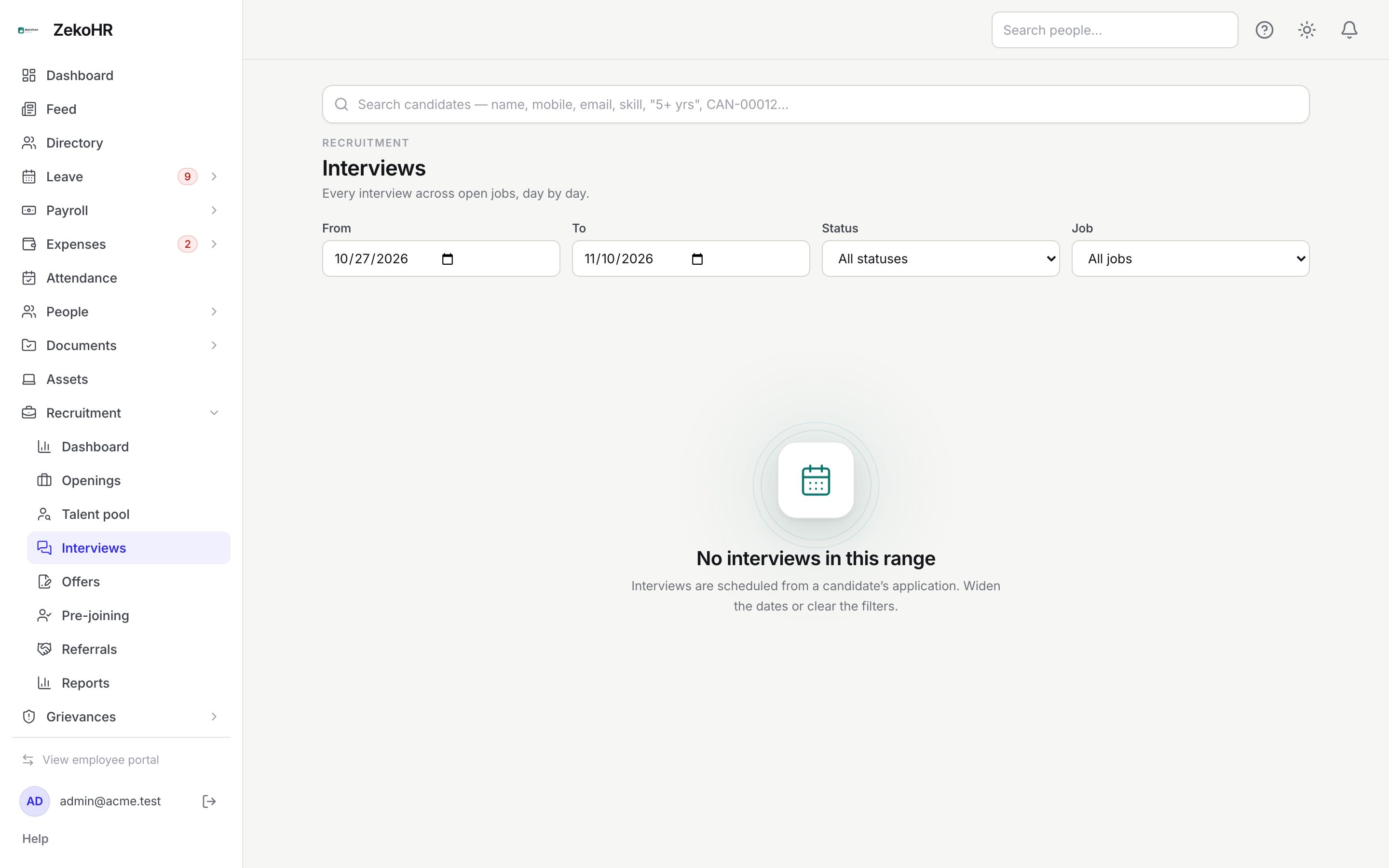
The agenda
Filter by From and To (defaults to today plus 14 days), Status (All statuses, Scheduled, Completed, Cancelled, No-show) and Job. Interviews are grouped by day with a Today badge. Opening the agenda with `status=completed` from the dashboard looks back 30 days instead. Each card offers the same actions as on the application.
Scheduling an interview
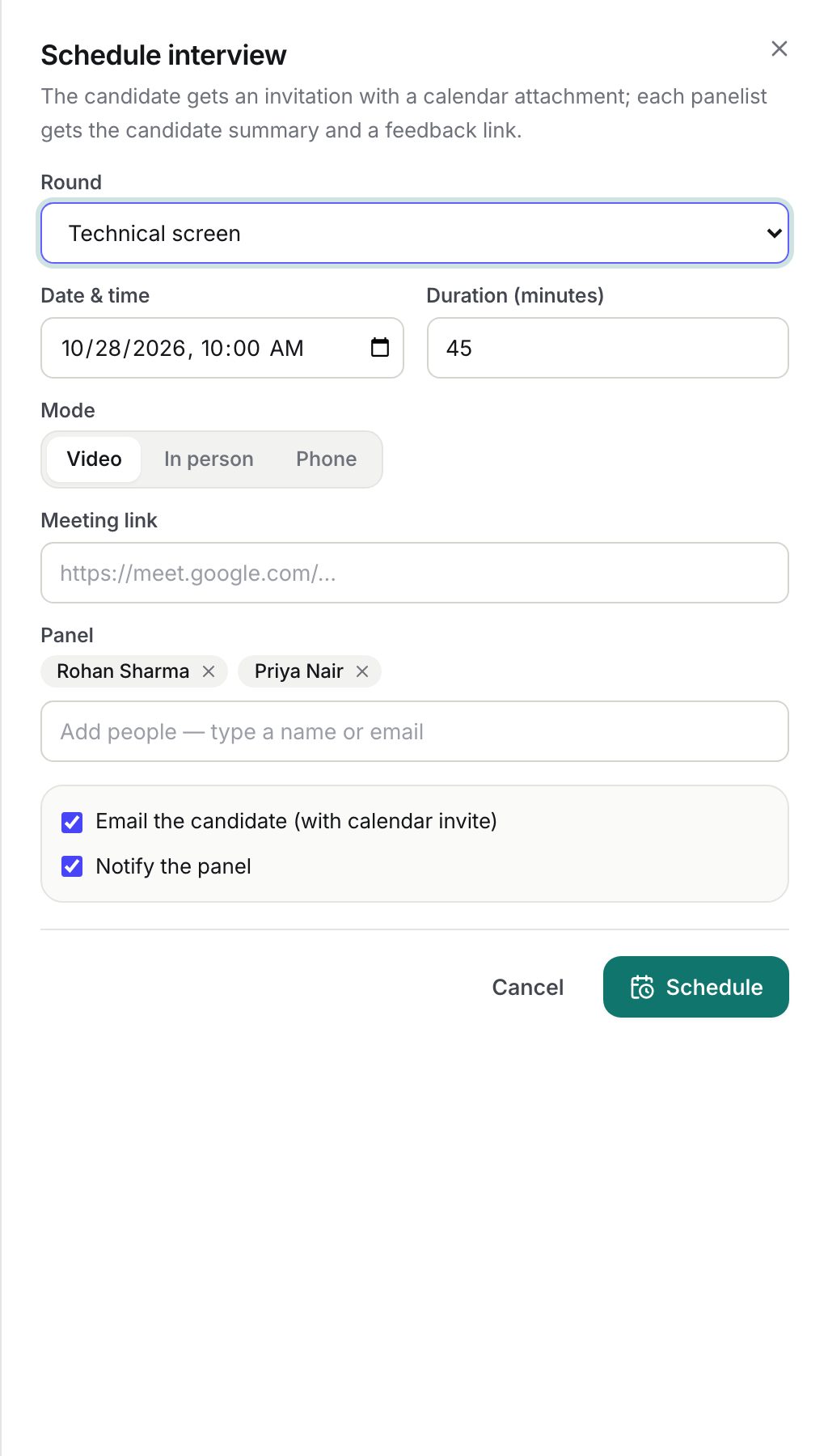
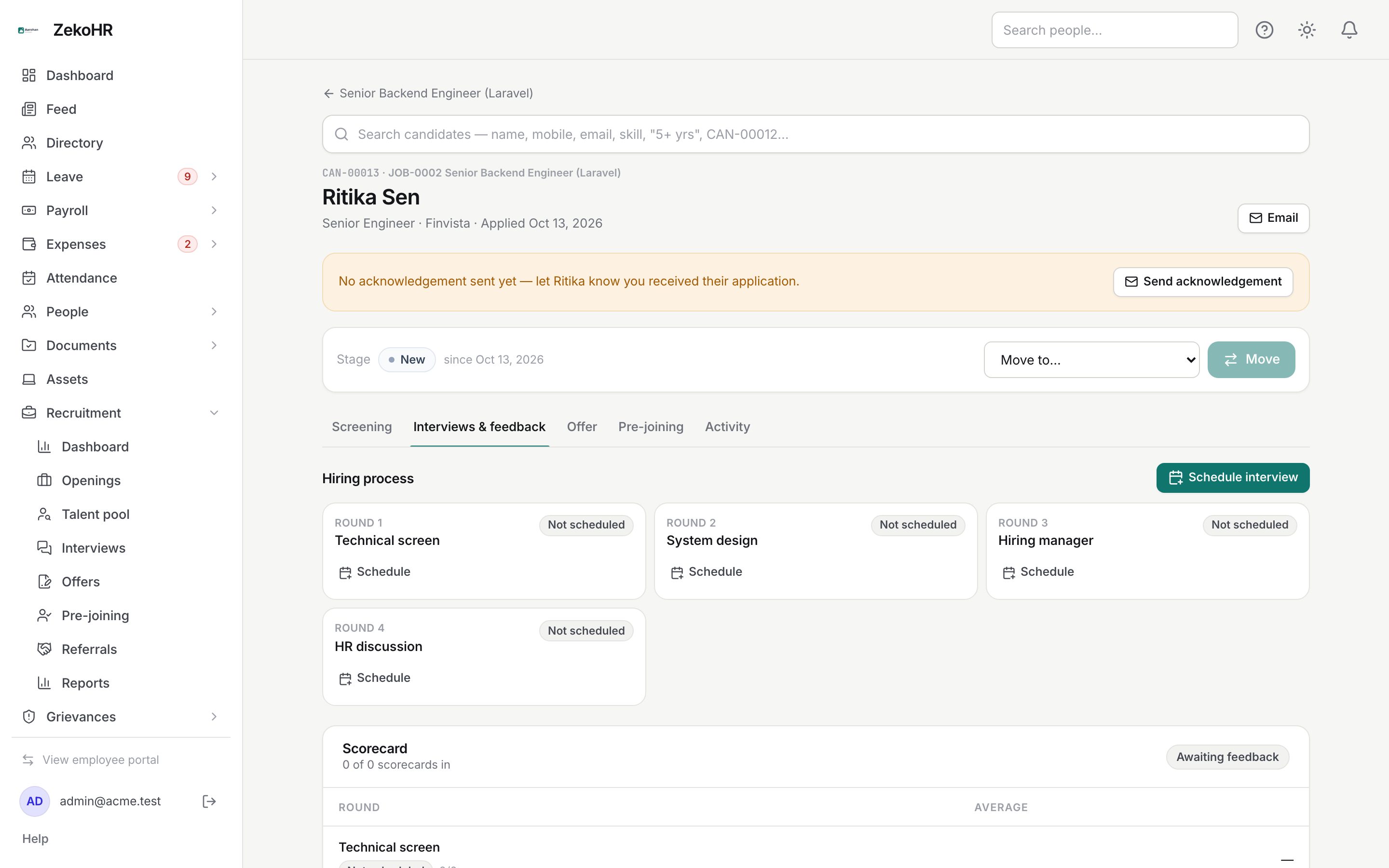
- On the application's Interviews & feedback tab, click Schedule interview, or Schedule on a specific round in the Hiring process strip (shown when the round is not yet scheduled, or was cancelled or a no-show).
- Round: pick one of the job's rounds, or Other (ad-hoc round) and give it a Round name (max 120). Picking a round prefills the mode, duration and default panel.
- Date & time (defaults to tomorrow 10:00) and Duration (minutes) (5 to 720).
- Mode: Video (with a Meeting link that must start with http or https), In person (with a Location) or Phone.
- Panel: at least one person, up to 20, all active employees of the organisation.
- Email the candidate (with calendar invite) and Notify the panel are both on by default.
- Click Schedule.
Managing an interview
Each interview card shows the round, status, reschedule count, time range, mode, location or meeting link, the panel with each panelist's feedback state, and feedback received as n/m (marked overdue when late).
| Button | What it does |
|---|---|
| Reschedule | Reopens the dialog; saving bumps the reschedule count, sends a calendar update to the candidate and tells the panel. A panelist who has already submitted feedback cannot be removed. |
| Complete | Marks it completed; available once the start time has passed. |
| No-show | Marks the candidate absent; available once the start time has passed. |
| Cancel | Asks for a reason, tells the panel, and optionally emails the candidate a calendar cancellation. |
An interview with a panel also completes itself automatically once it has ended and every panelist has submitted feedback.
The scorecard
The Scorecard block on the tab lists rounds as rows and panelists as columns. Each cell shows the panelist's recommendation and overall rating, Pending, Draft or Overdue. The header shows how many scorecards are in, the average out of 5 and the overall signal (Strong hire, Hire, Mixed, No hire, Strong no hire, Awaiting feedback). HR and the hiring manager see every submitted scorecard; a panelist sees others only after submitting their own.
Statuses
| Status | Meaning | What happens next |
|---|---|---|
| Scheduled | Invitation sent, awaiting the slot. | Reschedule, cancel, complete or no-show. |
| Completed | Held. | Panel submits feedback; HR moves the candidate on. |
| Cancelled | Called off with a reason. | Schedule again. |
| No-show | Candidate did not attend. | Schedule again or reject. |
What happens next
Scheduling moves the application into the round's Interview column (system move; the invitation is the candidate's email). The candidate gets `interview_invitation` with an .ics file; panelists get `interview_assigned` with the resume link. Rescheduling sends `interview_rescheduled`, cancelling `interview_cancelled`. ZekoHR sends the candidate a reminder 24 hours before the start (skipped when the invite went out less than 24 hours before), and reminds panelists with no submitted feedback 24 hours after the end, then daily up to three times. When a round's feedback is complete the recruiter and hiring manager get `round_complete` with the summary.
Rules and limits
- Only a scheduled interview can be edited or cancelled.
- The job's pipeline must have an Interview column, otherwise scheduling is refused.
- Panelists must be active employees of the organisation.
- Feedback can be submitted only once the interview has started; drafts can be saved any time. Submitted feedback stays editable for 7 days while the application is still in an interview stage.
- Nothing can be written to a scorecard after cancellation, a no-show, or once HR closes feedback.
Troubleshooting
Complete and No-show are greyed out. They appear only after the scheduled start time.
A panelist did not get the email. Check Notify the panel was ticked and that the person is an active employee. Panel changes on reschedule re-notify.
The candidate's invite has no meeting link. The link is only included for Video mode; In person uses the location field.
The scorecard shows Overdue. A panelist has not submitted 24 hours after the end. Reminders go out daily; you can also nudge them directly.