Reviewing and finalizing a run
Review is where a draft run becomes correct: the pre-flight report tells you what to fix, the payslip editor lets you enter LOP days and adjust individual lines, and Finalize locks everything and starts PDF generation. Nothing reaches employees until the separate publish step.
Who can do this: Admins with `payroll.manage.any`, HR Managers with `payroll.manage.assigned_companies`. The pre-flight report and the editor need manage rights; viewers see a read-only breakdown.
Where to find it
Sidebar Payroll → Payroll, open a run in Draft status (`/payroll/runs/<id>`). This module must be enabled on your plan; Admins can check Settings → Billing.
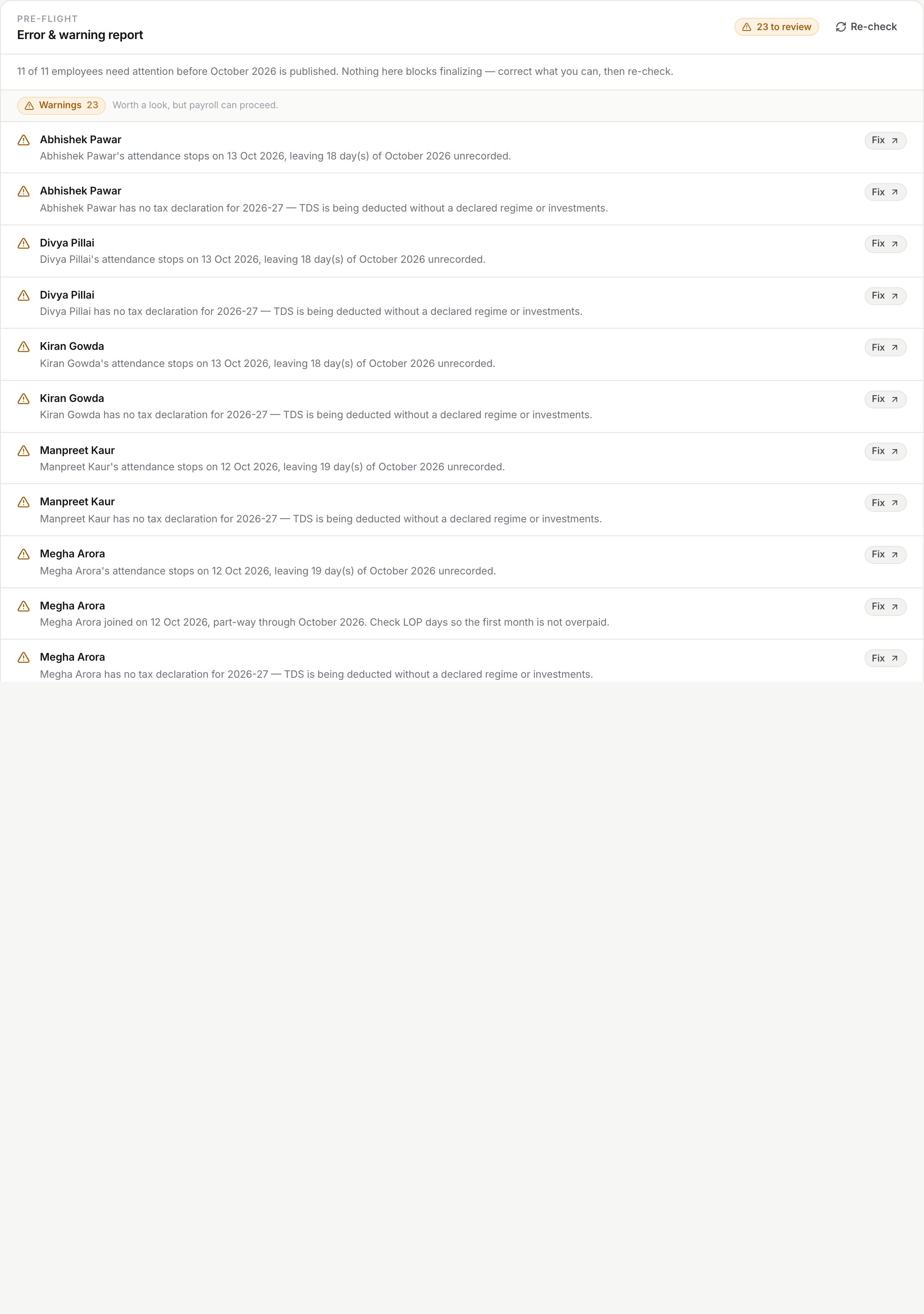
Step 1: read the pre-flight report
The Error & warning report runs automatically when the page opens and again on Re-check or after a recalculate. A clean run shows All clear and how many employees were checked. Otherwise findings are grouped:
| Severity | Findings | Meaning |
|---|---|---|
| Error | No salary assignment, salary structure missing or empty, missing bank details, exited before the period, exited during the period with no payslip, no payslips, negative net pay | Would pay the wrong amount or nobody |
| Warning | Inactive salary structure, missing PAN, missing UAN, joined during the period, exited during the period with a payslip, missing or incomplete attendance, tax declaration incomplete or not verified | Worth a look; payroll can proceed |
Each finding names the employee and has a Fix link to the right screen (salary tab, offboarding tab, attendance grid, tax tab or structures). Attendance checks appear only once at least one attendance day exists for that company and month; tax checks only once at least one declaration exists for the financial year. Nothing in the report blocks finalizing except negative net pay.
Step 2: edit payslips
Click an employee row to open Edit payslip.
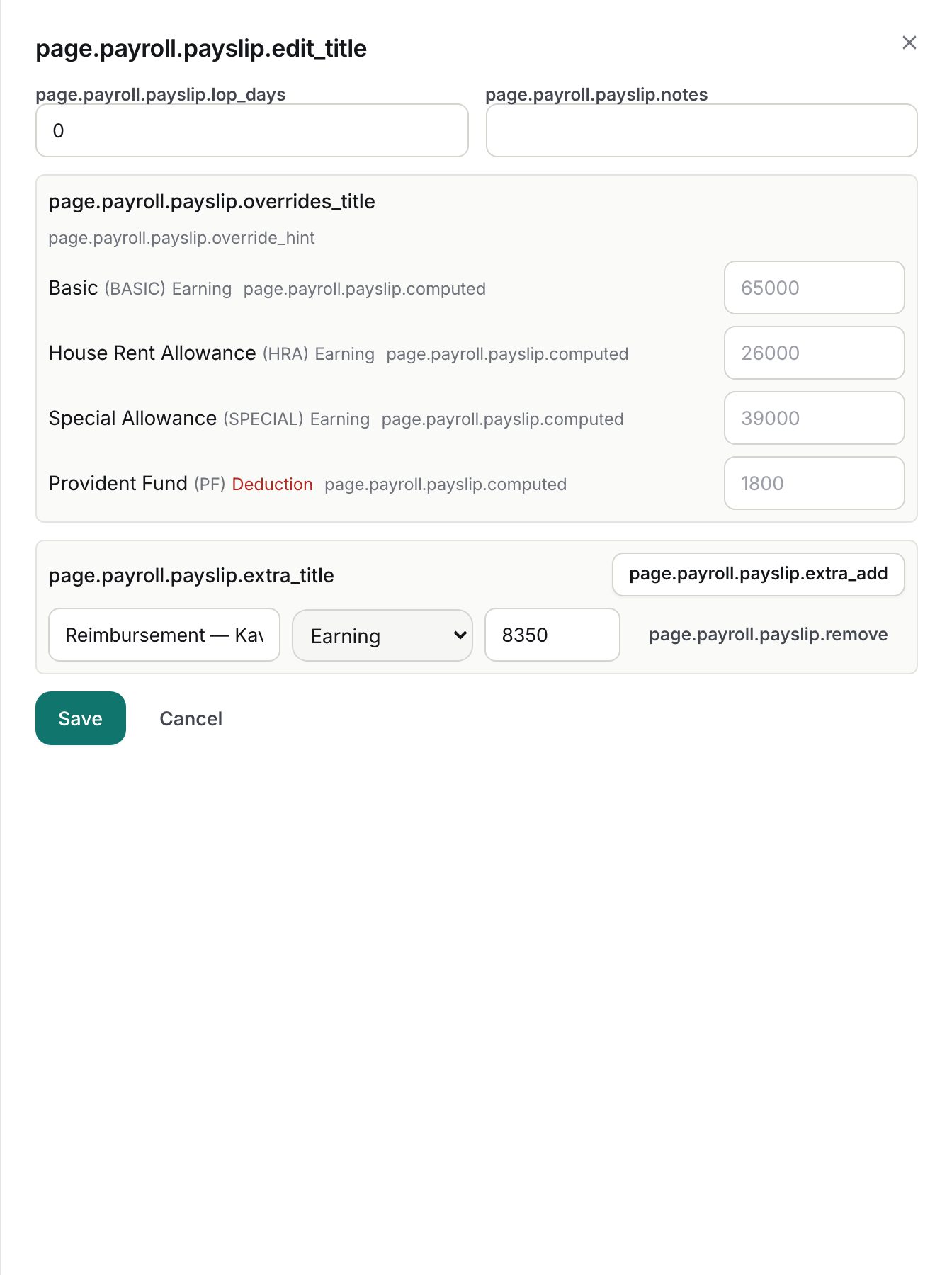
- LOP days: 0 to the days in the month, in steps of 0.5. Read the figure from the attendance grid; it is not copied automatically.
- Notes: optional, up to 500 characters; printed on the breakdown.
- Line overrides: every structure line is listed with its name, code, type and the computed amount. Type an amount (0 or more) to pin that line for this month; clear the box to return to the computed value. Use this for a manual TDS or PF figure.
- Extra lines: click Add line, enter a name (up to 120 characters), choose Earning or Deduction, enter an amount (0 or more). Use Remove to drop one. Extras are never prorated.
- Click Save. The payslip is recomputed, the row gets an edited badge and the edit is logged with the LOP and net pay before and after.
Overrides may only target components that exist in the employee's structure. Reimbursement lines named Reimbursement. <claim> are managed by the expense module; you may edit other extras freely.
Step 3: recalculate when inputs change
Recalculate recomputes every payslip from the current salary assignments and structures while preserving LOP days, overrides, extras and notes. It adds payslips for employees who gained an assignment since creation and drops payslips for employees who became ineligible, unless they carry manual edits (those are kept and flagged). It also refreshes reimbursement lines. Use it after changing a structure, assignment or company membership.
Step 4: finalize
Click Finalize and confirm. ZekoHR folds in any newly queued reimbursements, then refuses if any payslip has negative net pay, naming the employees. On success the status becomes Finalized, the time is recorded, PDF generation starts for every payslip and the action is logged. From this point payslips cannot be edited; use Roll back to edit if you need changes.
What happens next
- PDFs are generated in the background; the PDF button appears per row as each file lands. HR can download PDFs for finalized and published runs; employees only after publish.
- The review grid becomes read-only. Clicking a row shows the breakdown view instead of the editor.
- No email is sent at finalize.
Rules and limits
- Only draft runs can be recalculated, edited or deleted.
- Negative net pay is the single hard block; it usually means deductions exceed a prorated gross.
- LOP proration uses calendar days of the month.
- Manual edits survive recalculation; deleting the run is the only way to discard them all at once.
- Pre-flight is hidden on published runs and for users without manage rights, who see the simpler inline warnings instead.
Troubleshooting
Finalize says negative net pay. Open the named payslip, lower the deduction via an override or correct LOP days, save, and finalize again.
I fixed a bank detail but the error is still there. Click Re-check; the report does not poll on its own.
An employee who left is still in the run. Their draft payslip has manual edits so recalculate kept it. Either remove the edits (set LOP to 0, clear overrides and extras) and recalculate, or leave it if they are owed a part month.
The PDF button never appears. Generation is delayed. Reload after a minute; if it stays missing, ask your Admin. The run can still be published, but PDF downloads report not found until the files exist.