Offers and approvals
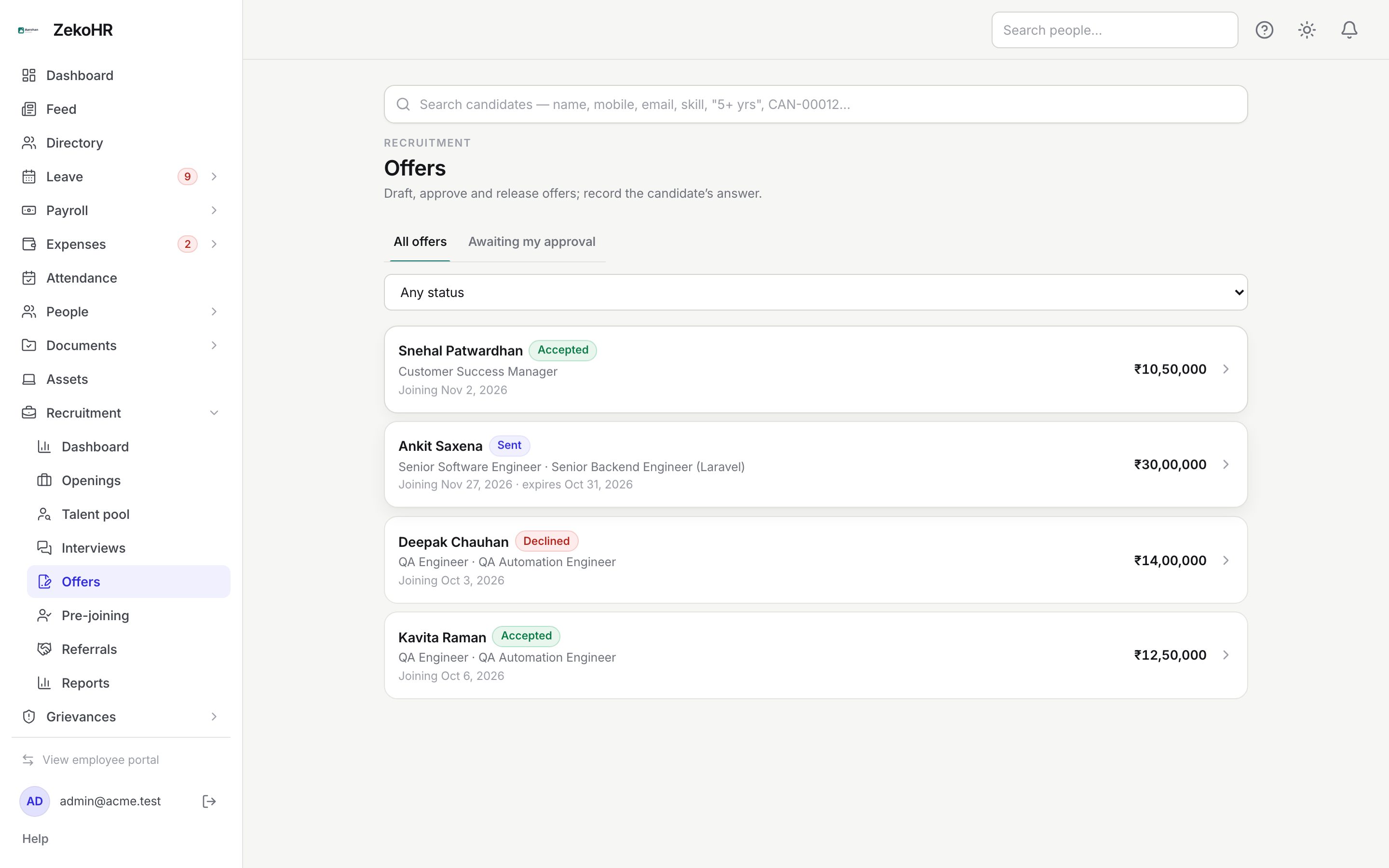
An offer is drafted from a selected candidate's application, approved by the people named in settings, released with a generated letter, and then marked accepted or declined by HR. Accepting starts pre-joining. Only one live offer exists per application; older ones stay as history.
Who can do this: HR with `recruitment.manage.any` or `recruitment.manage.assigned_companies` for the job's company drafts, submits, releases and records responses. Named approvers act on Offer approvals by relationship, without any recruitment permission. Hiring managers never see offer details or compensation.
Where to find it
Recruitment → Offers, at `/recruitment/offers`, with All offers (filter by status) and Awaiting my approval. Approvers also get Recruitment → Offer approvals (`/recruitment/offers?tab=mine`). An offer is drafted on the application's Offer tab; each offer has its own page at `/recruitment/offers/{id}`.
Drafting an offer
- Move the application to a Selected stage, open its Offer tab and click Draft offer.
- Designation (pick one, or leave it as free text) and Title on the letter (required), Department, Location.
- Annual CTC (required, more than 0) and Currency (three letters, INR by default).
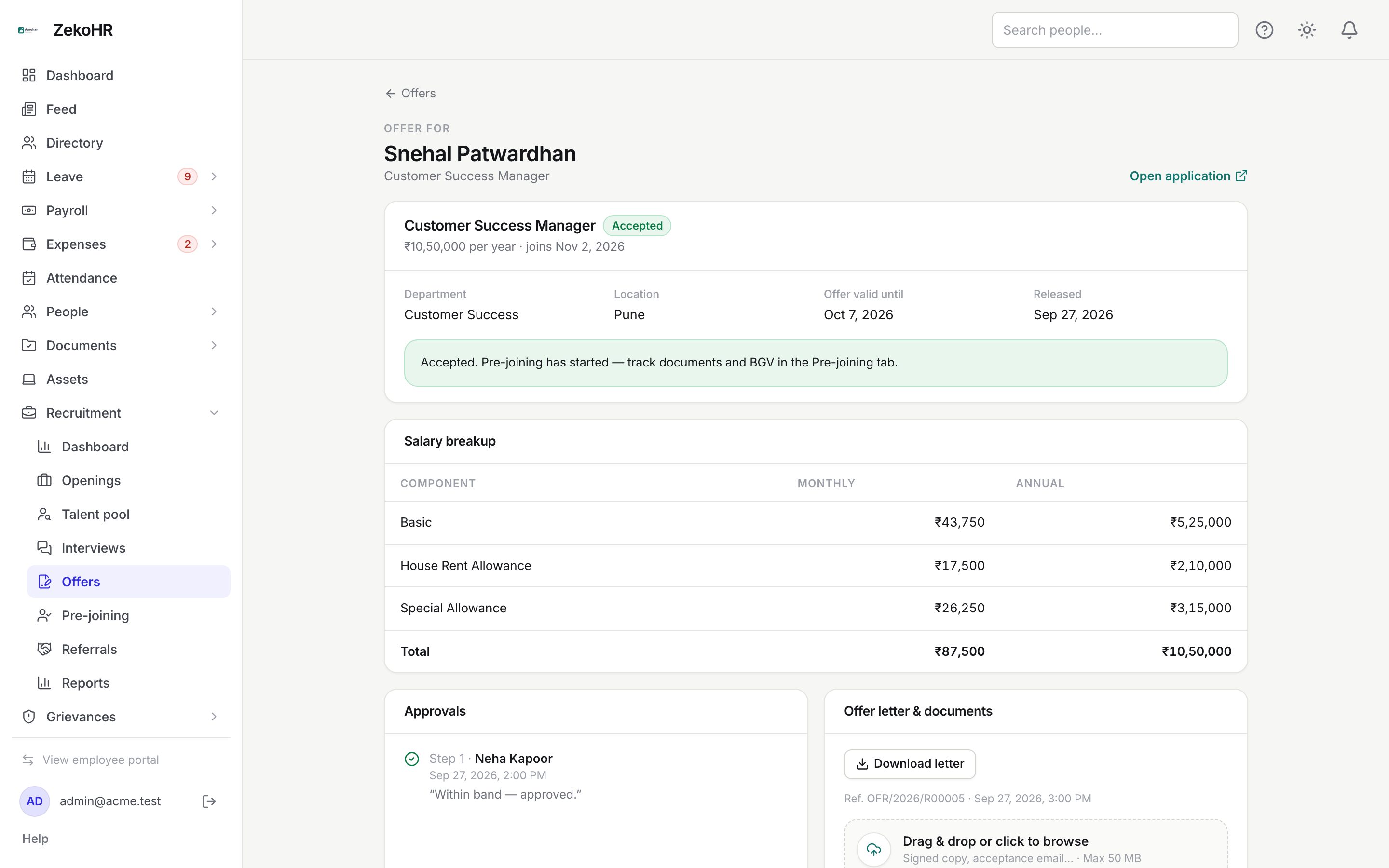
- Salary structure: pick a payroll structure and click Fill breakup to compute the components from the CTC, or leave it on Enter the breakup by hand. Edit Component, Monthly and Annual per line (they stay in step at 12x); Add component or remove lines. The total must add up to the CTC within 1 rupee, and every line needs a name. PF, ESI, PT and TDS are plain components; ZekoHR does not compute statutory amounts.
- Joining date, Offer valid until (must be on or before the joining date), Letter template (the default offer letter or another template of type Offer) and Internal notes.
- Click Create draft offer. The draft can be edited until it is submitted.
Approval
Click Submit for approval. Approvers are the ordered list in Settings → Recruitment → Offers; each gets one step and is notified in turn. With no named approvers, a single unnamed step can be approved by any recruitment manager of the company other than the person who submitted it. If nobody else can approve and you are an Admin, Approve it myself records a self-approval in the audit log. Approvers see Approve (with an optional comment) and Reject (what needs to change). Withdraw to draft cancels pending approvals so you can edit and resubmit, which starts a new approval round. If Offers need approval before release is off, a submitted offer is approved immediately.
Letter, release and response
- Generate letter builds the PDF from the letter template with merge fields and the breakup table; Regenerate is available until release. A warning lists any template blanks that could not be filled.
- Release offer asks Email the candidate and Include the offer letter PDF, with Review / edit the email first to change the subject and body. Releasing moves the application to Offer. If no letter exists it is generated on release.
- Mark accepted asks whether to Send the welcome email and Ask for the pre-joining documents; the application moves to Offer accepted and pre-joining starts.
- Mark declined needs a reason; the application moves to Offer declined.
- Withdraw (approved or sent) takes an optional reason and, for a sent offer, can email the candidate; the application returns to Selected.
- Offer letter & documents also takes uploads (PDF, Word, images, .eml, .msg, 10 MB each) such as the signed copy.
Statuses
| Status | Meaning | What happens next |
|---|---|---|
| Draft | Being written. | Edit or submit. |
| Pending approval | Waiting for the current step. | Approve, reject, or withdraw to draft. |
| Approved | Cleared to release. | Release, or withdraw. |
| Rejected | An approver sent it back. | Edit (back to draft) and resubmit. |
| Sent | Released to the candidate. | Mark accepted or declined; expires on the valid-until date. |
| Accepted | Pre-joining has started. | See Pre-joining. |
| Declined | Candidate said no. | Draft a new offer later if needed. |
| Withdrawn | Pulled back by HR. | History only. |
| Expired | Passed its valid-until date unanswered. | History; application is Offer declined with reason "Offer expired". |
What happens next
Approvers are notified at their step; the submitter hears the decision; the recruiter and hiring manager hear the response. The candidate gets the offer email with the letter, a reminder two days before expiry (daily at 09:00) and the welcome email on acceptance. Expiry runs daily at 00:20. Every action is audited, self-approvals explicitly.
Rules and limits
- An offer can only be created when the application is in a Selected stage, and never while another live offer exists.
- Only draft or rejected offers can be edited.
- Expiry must be on or before the joining date, and cannot be in the past when releasing.
- Until the Offer letter template is reviewed in Letters and templates, the PDF carries an "UNREVIEWED DRAFT" band and the offer cannot be released with the letter attached. You can release without the letter.
- Up to 10 named approvers; a named approver can only act on their own step.
Troubleshooting
Draft offer is missing on the Offer tab. The application is not in a Selected stage, or you do not manage this company.
Nobody can approve the offer. The step is unnamed and you submitted it. Name approvers in Settings → Recruitment → Offers (pending offers are moved to the new approvers on save), or use Approve it myself if you are the only eligible Admin.
Release is disabled with the letter ticked. Review the Offer letter template first, or untick Include the offer letter PDF.